Tosi - How to configure secure remote access
How to install and get started with Tosi Gateway Lock for Container on SIA Connect for secure remote access

Tosi, formerly known as Tosibox, is a secure remote access platform for OT and industrial networks. It creates a secure connection between a remote user and equipment such as PLCs, HMIs, IPCs, controllers, and other automation devices.
When Tosi is used together with SIA Connect, the two technologies complement each other well:
- Tosi provides secure remote access to the machine, site, or gateway.
- SIA Connect collects, converts, logs, and sends industrial data to clouds, databases, MQTT, REST APIs, OPC-UA, and other systems.
This means the same edge device and solution can help with both remote maintenance and continuous data collection.
This article will guide you through how to install Tosi Gateway Lock for Container on SIA Connect, activate it, match it with your Tosi Key and setup static routes to provide access to your equipment in the same network such as PLCs and other machinery.
Prerequistion
Before starting, make sure you have:
- A running SIA Connect Plus device or SIA Connect ANY-Ware installation.
- Admin access to the SIA Connect web interface.
- Internet access from the SIA Connect device/host.
- A Tosi activation code or license.
Instructions
This article and below video describes how to install Tosibox Gateway for Container on SIA Connect for secure remote access.
Install Tosi Gateway for Container
The video is titled “Getting Started with TosiBox for Remote Access on SIA Connect” and describes installing Tosibox Lock for Container on SIA Connect for secure remote access.
In the SIA Connect Edge portal, the tutorial flow should be written approximately like this:
- Go to the section for Remote Access.
- Find Tosi.
- Click Install
- Wait until the add-on/container is running.
- Open the Tosi Gateway for Container web interface from the button in SIA Connect or directly from this link
http://<IP_OF_SIACONNECT>:8181
Login for Tosi Gateway for Container
The default login for their management interface on Tosi is
Username: admin
Password: admin
You are forced to change password after the first login in order to continue
Activate Tosi Gateway for Container
Inside the Tosi Gateway Lock for Container interface follow the instructions and go to the activation page to activate the installation and remote access:

and fill in the activation key

Create a Remote Matching code and pair with Tosi Key
Next step to achieve remote access is to pair the Tosi with your system.
To add Tosi Gateway for Container to your Tosi Key whether its their Soft key or USB Key, do the following:
- In the top bar, go to Status → Keys and Lock
- In Remote Matching section, click Generate in order to generate a matching code
- Copy the generated code
- On your desktop insert or load you Tosi Key and open Tosi Key software
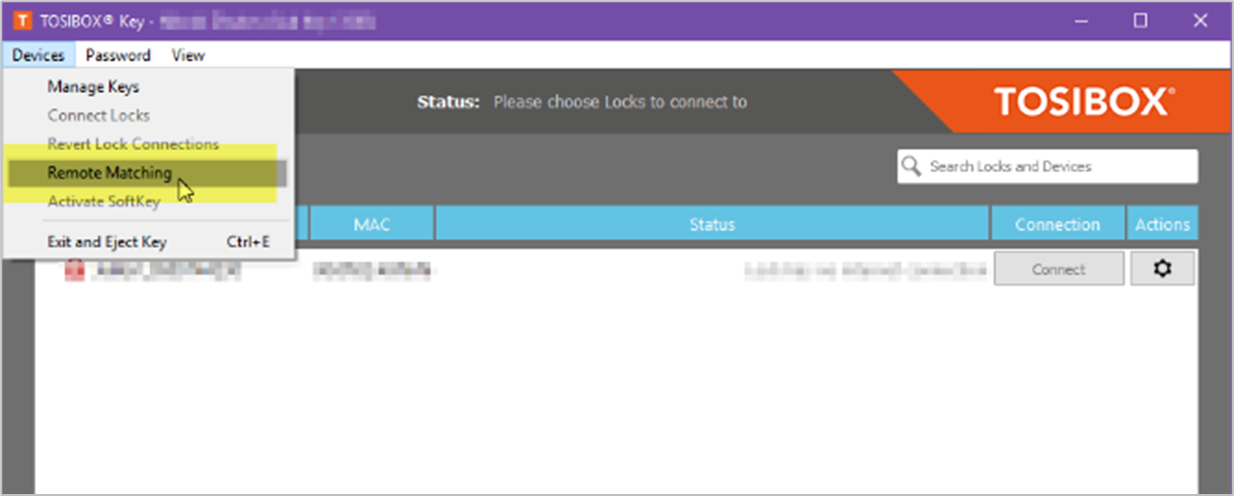
- Take the copied code from the Tosi Gateway for Container and pair with a new device inside the application
- Wait for the Tosi Gateway for Container and the Tosi Key to match
Set up a static route to access equipment in the network
If you want to access equipment located behind SIA Connect, such as a PLC, HMI, robot, machine controller, or other industrial device, you may need to add a static route.
A static route tells the remote access connection which network or device should be reachable through the SIA Connect gateway. This is useful when the equipment is not running directly on the same device as the Tosi container, but is instead connected to one of the local machine networks.
Before configuring the route, make sure you know:
- The IP address of the equipment you want to access.
- The subnet of the local machine network.
- The IP address of SIA Connect on that same network.
- That the equipment uses SIA Connect as its gateway, or that the return route is otherwise configured correctly.
Example setup:
Network subnet: 10.20.30.0/24
PLC IP address: 10.20.30.50
Accessing an individual IP address / device
Use this option if remote users should only access specific devices, such as a single PLC or HMI.
For example, if the device IP address is 10.20.30.50 you can add a static route only to that device.
To setup the static route, go to the Tosi Gateway Lock for Container interface, likely on http://10.10.206.2, and login
- Navigate to Network → Static routes
- Add a new static route with the following configuration
- Interface: lan
- Host or network: 10.20.30.50 (replace with your device IP)
- IPv4 netmask: 255.255.255.0 (replace with your device netmask)
- Press Save

This limits remote access to specific devices instead of the entire machine network. This is the recommended approach when remote access is only needed for a single PLC, HMI, robot, or controller, because it reduces the number of devices exposed through the remote access connection.
Wait for the configuration to apply. If you are already connected with Tosi Key, reconnect in order to be able to access the network
Accessing the whole network
Use this option if you want remote users to access multiple devices on the same local machine network.
For example, if SIA Connect is connected to a machine network using the subnet 10.20.30.0/24 you can add a static route for the whole subnet to access all the devices.
To setup the static route, go to the Tosi Gateway Lock for Container interface, likely on http://10.10.206.2, and login
- Navigate to Network → Static routes
- Add a new static route with the following configuration
- Interface: lan
- Host or network: 10.20.30.0 (replace with your network subnet)
- IPv4 netmask: 255.255.255.0 (replace with your netmask)
- Press Save
Wait for the configuration to apply. If you are already connected with Tosi Key, reconnect in order to be able to access the network

Be careful setting up a static route the whole network as this will provide remote access too all devices on the whole subnet network